
n8n - Secure Workflow Automation for Technical Teams
n8n is a workflow automation platform that gives technical teams the flexibility of code with the speed of no-code. With 400+ integrations, native AI capabilities, and a fair-code license, n8n lets you build powerful automations while maintaining full control over your data and deployments.
Key Capabilities
- Code When You Need It: Write JavaScript/Python, add npm packages, or use the visual interface
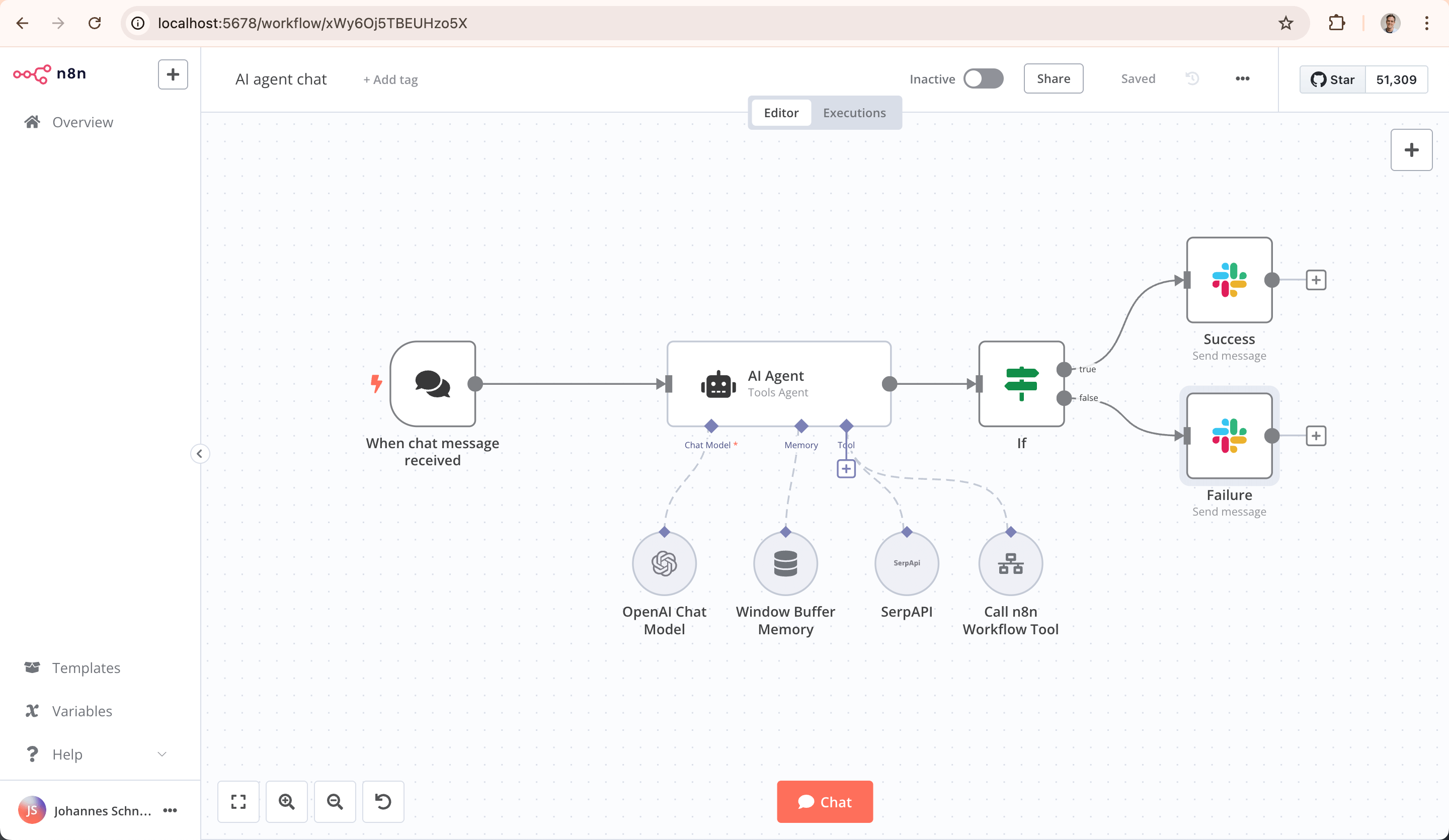
- AI-Native Platform: Build AI agent workflows based on LangChain with your own data and models
- Full Control: Self-host with our fair-code license or use our cloud offering
- Enterprise-Ready: Advanced permissions, SSO, and air-gapped deployments
- Active Community: 400+ integrations and 900+ ready-to-use templates
Contents
- n8n - Workflow automation tool
- Key Capabilities
- Contents
- Demo
- Available integrations
- Documentation
- Start n8n in Docker
- Start n8n with tunnel
- Use with PostgreSQL
- Passing sensitive data using files
- Example server setups
- Updating
- Setting Timezone
- Build Docker-Image
- What does n8n mean and how do you pronounce it?
- Support
- Jobs
- License
Demo
This 📺 short video (< 4 min) goes over key concepts of creating workflows in n8n.
Available integrations
n8n has 200+ different nodes to automate workflows. A full list can be found at https://n8n.io/integrations.
Documentation
The official n8n documentation can be found at https://docs.n8n.io.
Additional information and example workflows are available on the website at https://n8n.io.
Start n8n in Docker
In the terminal, enter the following:
docker volume create n8n_data

docker run -it --rm \
 --name n8n \
 -p 5678:5678 \
 -v n8n_data:/home/node/.n8n \
 docker.n8n.io/n8nio/n8n
This command will download the required n8n image and start your container. You can then access n8n by opening: http://localhost:5678
To save your work between container restarts, it also mounts a docker volume, n8n_data. The workflow data gets saved in an SQLite database in the user folder (/home/node/.n8n). This folder also contains important data like the webhook URL and the encryption key used for securing credentials.
If this data can't be found at startup n8n automatically creates a new key and any existing credentials can no longer be decrypted.
Start n8n with tunnel
Warning
: This is only meant for local development and testing and should NOT be used in production!
n8n must be reachable from the internet to make use of webhooks - essential for triggering workflows from external web-based services such as GitHub. To make this easier, n8n has a special tunnel service which redirects requests from our servers to your local n8n instance. You can inspect the code running this service here: https://github.com/n8n-io/localtunnel
To use it simply start n8n with --tunnel
docker volume create n8n_data

docker run -it --rm \
 --name n8n \
 -p 5678:5678 \
 -v n8n_data:/home/node/.n8n \
 docker.n8n.io/n8nio/n8n \
 start --tunnel
Use with PostgreSQL
By default, n8n uses SQLite to save credentials, past executions and workflows. However, n8n also supports using PostgreSQL.
Warning
: Even when using a different database, it is still important to persist the
/home/node/.n8nfolder, which also contains essential n8n user data including the encryption key for the credentials.
In the following commands, replace the placeholders (depicted within angled brackets, e.g. <POSTGRES_USER>) with the actual data:
docker volume create n8n_data

docker run -it --rm \
 --name n8n \
 -p 5678:5678 \
 -e DB_TYPE=postgresdb \
 -e DB_POSTGRESDB_DATABASE=<POSTGRES_DATABASE> \
 -e DB_POSTGRESDB_HOST=<POSTGRES_HOST> \
 -e DB_POSTGRESDB_PORT=<POSTGRES_PORT> \
 -e DB_POSTGRESDB_USER=<POSTGRES_USER> \
 -e DB_POSTGRESDB_SCHEMA=<POSTGRES_SCHEMA> \
 -e DB_POSTGRESDB_PASSWORD=<POSTGRES_PASSWORD> \
 -v n8n_data:/home/node/.n8n \
 docker.n8n.io/n8nio/n8n
A full working setup with docker-compose can be found here.
Passing sensitive data using files
To avoid passing sensitive information via environment variables, "_FILE" may be appended to some environment variable names. n8n will then load the data from a file with the given name. This makes it possible to load data easily from Docker and Kubernetes secrets.
The following environment variables support file input:
- DB_POSTGRESDB_DATABASE_FILE
- DB_POSTGRESDB_HOST_FILE
- DB_POSTGRESDB_PASSWORD_FILE
- DB_POSTGRESDB_PORT_FILE
- DB_POSTGRESDB_USER_FILE
- DB_POSTGRESDB_SCHEMA_FILE
Example server setups
Example server setups for a range of cloud providers and scenarios can be found in the Server Setup documentation.
Updating
Before you upgrade to the latest version make sure to check here if there are any breaking changes which may affect you: Breaking Changes
From your Docker Desktop, navigate to the Images tab and select Pull from the context menu to download the latest n8n image.
You can also use the command line to pull the latest, or a specific version:
Pull latest (stable) version
docker pull docker.n8n.io/n8nio/n8n
Pull specific version
docker pull docker.n8n.io/n8nio/n8n:0.220.1
Pull next (unstable) version
docker pull docker.n8n.io/n8nio/n8n:next
Stop the container and start it again:
- Get the container ID:
docker ps -a
- Stop the container with ID container_id:
docker stop [container_id]
- Remove the container (this does not remove your user data) with ID container_id:
docker rm [container_id]
- Start the new container:
docker run --name=[container_name] [options] -d docker.n8n.io/n8nio/n8n
Updating with Docker Compose
If you run n8n using a Docker Compose file, follow these steps to update n8n:
# Pull latest version
docker compose pull

# Stop and remove older version
docker compose down

# Start the container
docker compose up -d
Setting the timezone
To specify the timezone n8n should use, the environment variable GENERIC_TIMEZONE can
be set. One example where this variable has an effect is the Schedule node.
The system's timezone can be set separately with the environment variable TZ.
This controls the output of certain scripts and commands such as $ date.
For example, to use the same timezone for both:
docker run -it --rm \
 --name n8n \
 -p 5678:5678 \
 -e GENERIC_TIMEZONE="Europe/Berlin" \
 -e TZ="Europe/Berlin" \
 docker.n8n.io/n8nio/n8n
For more information on configuration and environment variables, please see the n8n documentation.
Here's the refined version with good Markdown formatting, ready for your README:
Build Docker Image
Important Note for Releases 1.101.0 and Later: Building the n8n Docker image now requires a pre-compiled n8n application.
Recommended Build Process:
For the simplest approach that handles both n8n compilation and Docker image creation, run from the root directory:
pnpm build:docker
Alternative Builders:
If you are using a different build system that requires a separate build context, first compile the n8n application:
pnpm run build:deploy
Then, ensure your builder's context includes the compiled directory generated by this command.
What does n8n mean and how do you pronounce it?
Short answer: It means "nodemation" and it is pronounced as n-eight-n.
Long answer: I get that question quite often (more often than I expected) so I decided it is probably best to answer it here. While looking for a good name for the project with a free domain I realized very quickly that all the good ones I could think of were already taken. So, in the end, I chose nodemation. "node-" in the sense that it uses a Node-View and that it uses Node.js and "-mation" for "automation" which is what the project is supposed to help with. However, I did not like how long the name was and I could not imagine writing something that long every time in the CLI. That is when I then ended up on "n8n". Sure it does not work perfectly but neither does it for Kubernetes (k8s) and I did not hear anybody complain there. So I guess it should be ok.
Support
If you need more help with n8n, you can ask for support in the n8n community forum. This is the best source of answers, as both the n8n support team and community members can help.
Jobs
If you are interested in working for n8n and so shape the future of the project check out our job posts.
License
You can find the license information here.